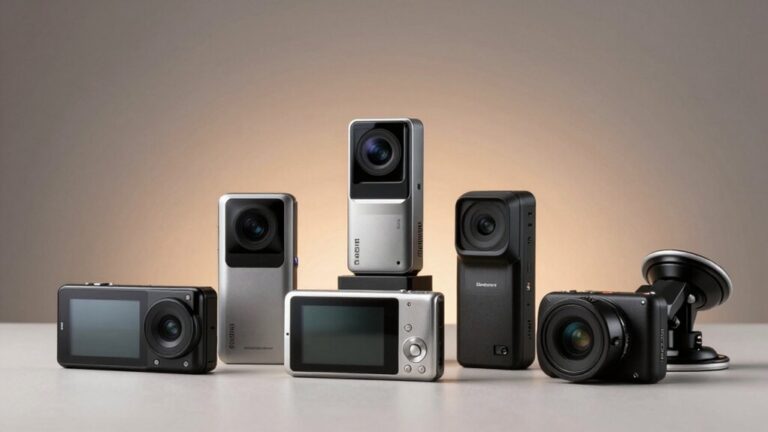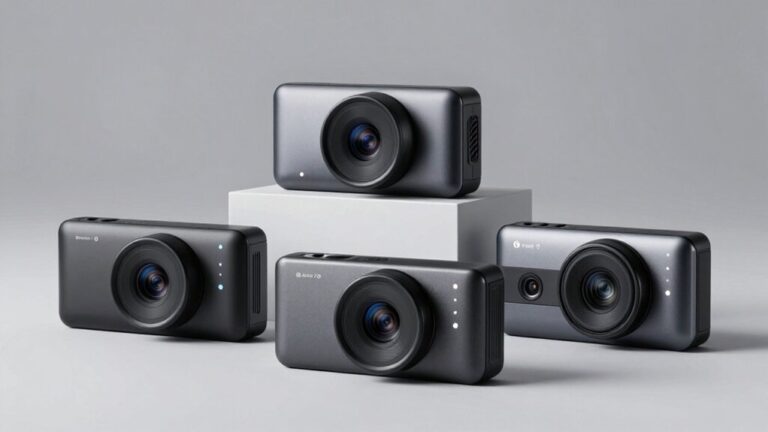

To install a wireless dash cam, you’ll first mount it behind your rearview mirror within wiper coverage, ensuring it doesn’t obstruct your view or violate local windshield regulations. Next, hardwire the power connection using a fuse tap kit to your vehicle’s ACC or constant fuse, routing cables discreetly along the headliner and A-pillar trim. Download the manufacturer’s app, connect to the camera’s Wi-Fi hotspot with WPA2 encryption enabled, and adjust the lens angle for ideal road coverage. Test both day and night recording quality to verify proper operation—our extensive guide below covers advanced optimization techniques.
Choosing the Right Mounting Location
Selecting the best mounting location for your wireless dash cam requires balancing three critical factors: field of view coverage, legal compliance, and driver safety. Position your camera near or just behind the rearview mirror to achieve ideal road coverage while minimizing obstruction. This central placement captures both traffic lanes and a portion of your hood for spatial context. Verify that your mounting options align with regional visibility regulations—some jurisdictions restrict windshield-mounted devices entirely. Confirm the camera stays within wiper coverage to maintain lens clarity during adverse weather. Avoid interference with airbag deployment zones and your direct sightlines to highway signals. For commercial vehicles, consult HGV-specific legal requirements. If windshield mounting is not permitted, consider a dashboard installation positioned low and near the center, adjusting the angle to capture approximately 60% road and 40% sky for balanced footage. Many states permit windshield mounting behind the rearview mirror but limit placement to specific windshield zones, such as under 5 inches on the driver’s side or 7 inches on the passenger’s side. For rear-facing cameras, mount near the top center of the rear windshield to provide a clear view behind without blocking visibility. Models with OEM-style hidden design integrate behind the rearview mirror to blend seamlessly with your vehicle’s interior while maintaining full road coverage. Clean the mounting surface thoroughly with glass cleaner before installation to guarantee adhesive stability and prevent displacement from vibration. Use the mounting kit’s adhesive pads or suction cups to secure your dash cam, ensuring the attachment method suits your installation preference and vehicle conditions. When planning hardwired installations, identify ACC power fuses in your vehicle’s fuse box using a circuit tester to ensure your dash cam powers on automatically with ignition.
Connecting Power to Your Dash Cam
While wireless dash cams transmit footage without cables, they still require a hardwired power connection to function continuously during your drives. You’ll find several power options available: the 12V cigarette lighter socket offers simplicity, while hardwiring to the fuse box provides a cleaner installation. For hardwiring, you’ll use a fuse tap kit connected to either an ACC fuse (ignition-controlled) or constant fuse (parking mode enabled).
Proper grounding techniques are critical for stable operation. Attach the ground wire to a bare metal chassis point, removing any paint or corrosion for ideal contact. Verify connections using a multimeter before finalizing installation. For those seeking to avoid hardwiring altogether, smart power adapters tap into the rearview mirror’s power source and offer plug-and-play installation with multiple connector options for compatibility. Some dash cams can also draw power from the OBD port, which remains powered when the vehicle is off. If you choose a parking mode setup with constant power, consider using hardwiring kits with low voltage protection to prevent battery drain when the vehicle sits unused for extended periods. Route cables discreetly along windshield edges and A-pillars using adhesive clips, ensuring you don’t interfere with airbags or create tension points that could damage wiring. Use zip ties and electrical tape to secure the wiring and keep your installation looking professional and tidy. Test the setup by turning the ignition on and off to verify the dash cam powers and operates as expected. Beyond installation benefits, dash cam footage can help protect your driving record by serving as valuable evidence in accidents to prove you were not at fault.
Setting Up the Wireless Connection
Once you’ve secured power to your dash cam, you’ll need to establish the wireless connection that enables remote access and real-time monitoring capabilities. Download the manufacturer’s official app and verify device compatibility with your smartphone’s operating system. Most dash cameras create their own Wi-Fi hotspot that you connect to directly through the dedicated app, rather than joining your home network. Navigate to the app’s network setup interface and select your preferred Wi-Fi frequency band—2.4 GHz for extended range or 5 GHz for faster data transfer. Follow the pairing protocol to connect your dash cam to the vehicle or home network, ensuring WPA2 encryption is enabled for security. Confirm signal strength indicators display ideal connectivity before proceeding. Advanced models featuring Wi-Fi 6 connectivity deliver significantly faster file transfers and enhanced performance for downloading large video files to your smartphone. Should issues arise, Wi-Fi troubleshooting steps include restarting both devices, toggling network settings, or performing a factory reset. Update firmware immediately to maintain protocol compatibility and performance standards. The wireless connection also enables cloud backup feature to safeguard your footage against theft or damage to the physical device. Many dash cams support live video streaming to your phone, allowing you to monitor your vehicle in real-time from a remote location. Some wireless dash cams can integrate with backup camera systems to provide comprehensive vehicle monitoring from both front and rear perspectives. Test the app connectivity by transferring a few clips to ensure smooth wireless performance and verify that the interface is intuitive for everyday use.
Hiding Cables for a Clean Installation
Proper cable management distinguishes a professional dash cam installation from an amateur setup. Begin by routing power cables along the windshield’s top edge, tucking them under the headliner using trim removal tools. This approach guarantees ideal cable organization while maintaining aesthetic appeal.
Remove the A-pillar trim carefully, avoiding airbag deployment zones, and run cables through factory grooves to the dashboard. Secure wiring with adhesive clips or zip ties at regular intervals to prevent sagging. Dedicated adhesive clips from manufacturers like Thinkware and BlackVue use strong 3M adhesive and are specifically designed for managing dash cam cables on glass or metal surfaces.
Under the dashboard, utilize existing gaps and crevices to conceal excess cable length. Bundle wires neatly and keep them clear of pedals and moving components. Proper cable concealment reduces risk of tangling that could interfere with safe vehicle operation. Test the camera after installation to ensure the camera angle provides the best road view and all connections are secure.
For rear camera installations, route cables through door sills or roof lining using longer cables (4m-6.5m). Modern wireless dash cams with 5G Wi-Fi connectivity enable rapid clip transfer without requiring constant cable connections for data access. Advanced models with Wide Dynamic Range technology improve footage quality in challenging lighting conditions, ensuring captured details remain clear and usable as evidence. Consider hardwiring to the fuse box for complete wire concealment and enhanced reliability. Clean the mounting area thoroughly with an alcohol wipe before attaching the adhesive film to ensure maximum hold and stability.
Adjusting Camera Position and Angle
Setting up the camera position and angle correctly maximizes your dash cam’s effectiveness in capturing usable footage during incidents. Mount the unit centrally behind your rearview mirror at a suitable camera height that avoids capturing excessive sky or hood. Position the lens tilt to aim directly at the road surface, ensuring close-range incidents record clearly without distortion. Use your dash cam’s built-in screen or smartphone app to preview the live feed and fine-tune adjustments. Account for windshield curvature and your typical seat position to minimize obstruction. Test during both day and night conditions, recording sample footage to verify clarity, field of view, and horizon alignment. For optimal nighttime recording, consider dash cams equipped with Sony STARVIS sensors that deliver clear, full-color video in low-light conditions. Confirm stable mounting by reviewing clips after driving short distances, adjusting as necessary before finalizing installation. Choose mounts with strong magnetic anchors or quality suction cups that maintain secure attachment even during rough driving conditions. Be aware that vehicles with sloped windshields may require extra attention to angle adjustment to achieve the optimal camera position. Ensure the camera does not block your sightlines while maintaining its ability to capture comprehensive road footage. For optimal coverage, consider models with wide-angle lenses that provide a broader field of view without requiring multiple adjustments. Additionally, verify that your camera positioning captures enough detail to record license plates clearly, which is essential for documenting incidents and providing evidence when needed.
Testing Your Dash Cam Installation
After completing the physical installation, you must verify your dash cam functions correctly through thorough testing protocols. Begin with recording verification by powering the vehicle to ACC/ON position, confirming the camera activates automatically and displays recording indicators. Check the memory card recognition and guarantee footage saves without errors. Conduct video evaluation across multiple lighting conditions—daylight, low light, and nighttime—to assess clarity, motion fluidity, and license plate readability. During evaluation, prioritize number plate visibility as this represents a critical performance benchmark used in professional testing standards. Test mount stability during driving over various road surfaces, verifying no vibrations or shifts occur. Pair the dash cam with its smartphone app to confirm live streaming functionality and settings persistence. Premium models like the Garmin Dash Cam X310 offer remote access via the Garmin Drive app, allowing you to view and manage recordings directly from your smartphone. Review playback on multiple devices, validate timestamp accuracy, and adjust camera angles to eliminate blind spots or excessive dashboard visibility until ideal recording quality is achieved. For optimal performance, ensure your dash cam features image stabilization to minimize motion blur and vibration artifacts during footage capture. Advanced features like incident detection can automatically save footage when sudden movements or impacts are detected, providing crucial evidence in the event of an accident. Verify your microSD card has appropriate UHS-I speed class ratings to ensure reliable recording performance and prevent dropped frames during high-resolution capture. Models equipped with Sony Starvis sensors deliver superior image quality and enhanced low-light performance, making them particularly valuable for nighttime recording verification.